
How to remove followers on Facebook is something you might wonder about when you notice strangers following your profile or want to keep certain people from seeing your posts. You don't have to share every update with everyone.
If you want someone to stop following you, you can block their account. Don't want to block them? Changing your privacy settings can limit what they see, though they'll remain a follower.
We'll cover the steps for both mobile and desktop, along with ways to manage followers on Facebook Pages and in Professional Mode.
Followers vs. Friends: What's the Difference?
When you add someone as a friend on Facebook, you usually start following each other. But people don't always need to be your friends to follow your posts. If your profile allows public followers, even someone you don't know can follow you. Your friends-only posts will still stay private.
Anyone can see your public posts, whether they follow you or not. Unfriending someone might not stop them from following you, either. If you'd rather keep certain people from seeing your updates, you'll need to check who can follow you and who can see your posts.
Should You Remove, Restrict, or Block Someone?
Not everyone needs to be blocked. Maybe you want to hide a few personal posts from a friend, or you no longer want someone following you. Facebook gives you different ways to handle each situation.
If you're unsure, think about what you actually want to stop: someone following you or someone seeing your posts. Those are two different things.
For privacy on other platforms, you can also read our guide on how to hide followers on Instagram
How to View Your Facebook Followers List
Before removing anyone, you might want to check who's actually following you. Facebook has a follower list where you can find people who follow your profile without being your friends. You can open it on your phone or computer, although the menus may look a little different depending on your account.
Find Your Followers on Desktop
Checking your followers on a computer is fairly simple. You'll usually find the list under the Friends section of your profile.
- Open Facebook in your browser and log in.
- Click your profile picture or name to visit your profile.
- Select Friends below your cover photo.
- Click Followers to see who's following you. If the option isn't visible, check the More menu.
The list shows people who follow you but aren't on your friends list. If you spot an unfamiliar account, you can open its profile to take a closer look.
Find Your Followers on the Mobile App
You can check the same list using the Facebook app on Android or iPhone. The option is usually tucked away in your profile's About section.
- Open the Facebook app and tap your profile picture or name.
- On your profile, tap See your About info.
- Scroll down until you reach the Followers section.
- Tap See All to open your follower list.
Can't find the Followers section? Check the Friends area on your profile. Facebook doesn't show this option on every account, and its location may differ between app versions and profile types
How to Remove Followers on Facebook Using a Computer
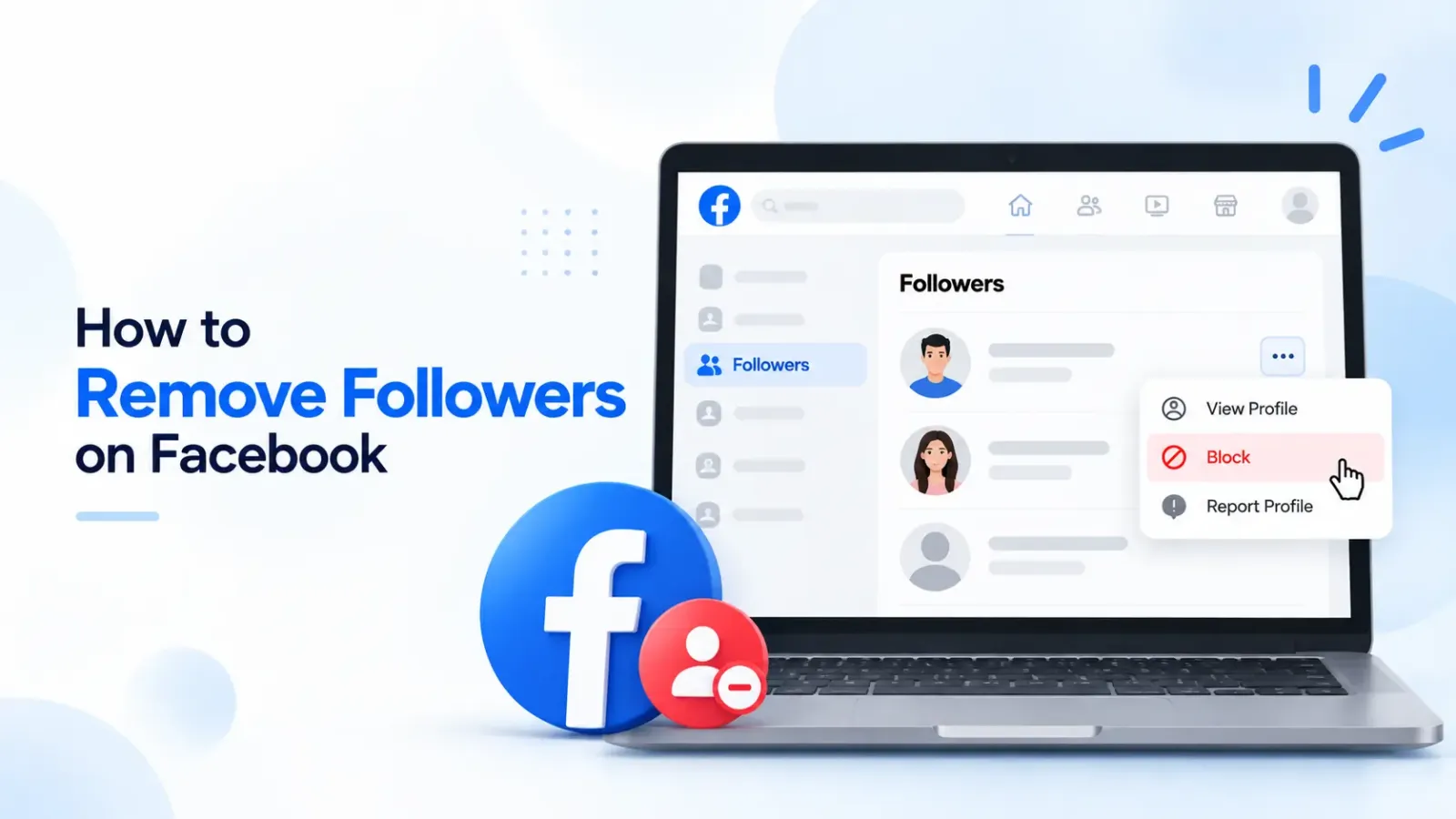 If someone you don't want is following your Facebook profile, you can block them from your computer. Facebook doesn't offer a separate Remove Follower button on every profile, so blocking is the most reliable way to stop a specific account from following you.
Find and Block a Specific Follower
You can block someone directly from their Facebook profile. If they're already in your follower list, find their name and follow these steps:
- Log in to your Facebook account on your computer.
- Open your profile and click Friends, then Followers, if available.
- Find the person you want to remove and open their profile.
- Click the three-dot menu (···) next to their profile information.
- Select Block and confirm your choice.
Once blocked, that account can no longer follow you, view your profile normally or contact you through Facebook. If the person has another account, you may need to block that one separately.
What If You Can't Find Someone in Your Followers List?
Can't find the person you're looking for? You can search for their name using Facebook's search bar, open their profile, and select Block from the three-dot menu. There's no need to find them in your follower list first.
You can also go to Settings & privacy → Settings → Blocking. Find the Block users option, enter the person's name, select the correct profile, and confirm your choice.
Blocking someone doesn't change what other people can see on your profile. If you're reviewing your account more broadly, our guide to optimizing your social media profile covers other profile details worth checking.
Remove Unwanted Followers on Android and iPhone
You can block someone directly from the Facebook app, whether you're using an Android phone or an iPhone. The steps are almost identical on both devices, and you don't need to change your account settings.
Follow these steps to block an unwanted follower:
- Open the Facebook app and go to your profile.
- Find the person in your Followers list, if available, or search for their name.
- Tap their name to open their profile.
- Tap the three-dot menu (···) near their profile information.
- Select Block and tap it again to confirm.
Once you've blocked someone, they can no longer follow you or interact with your profile in the usual ways. Facebook won't notify them, but they may notice they can't find your profile or contact you.
Changed your mind? Go to Settings & privacy → Settings → Blocking to find and unblock them. They may be able to follow you again, depending on your profile settings.
Can You Remove Someone Without Blocking Them?
You don't always need to block someone to keep your Facebook posts private. If the person is already your friend, you can use the Restricted list to hide your friends-only posts while keeping them on your friends list.
You can also choose Friends except when publishing a post to hide it from certain friends. People on your Restricted list can still see your public posts and anything you tag them in.
If you'd rather end the friendship, you can unfriend them. Just remember that unfriending or changing your post privacy doesn't necessarily remove someone from your follower list. They may still see your public updates if your profile allows it.
How to Manage Followers on a Facebook Page
If you run a Facebook Page, you might occasionally deal with spam comments, fake accounts, or people who repeatedly bother your audience. You can block these accounts from your Page without blocking them through your personal profile.
To block someone, switch to your Page and open Settings & privacy → Settings → Blocking. Find the account you want to block and confirm your choice. The exact menu may differ depending on your Page layout and permissions.
If you're managing a business Page, understanding the difference between Facebook Page likes and followers can also help you keep track of your audience. Page likes and followers aren't always the same, and blocking unwanted accounts is a separate task.
Managing Your Audience in Facebook Professional Mode
Professional Mode lets people follow your public updates without becoming your Facebook friends. This works well for creators and business owners, but you might not want every follower seeing your personal photos or family updates.
You can choose Friends instead of Public when sharing something personal. If a particular account keeps bothering you, open its profile and block it. Your public followers won't be able to see posts you've shared only with friends, unless they're included in the post's audience.
If you use Facebook to promote your business, a reliable SMM panel offers marketing services for growing your online presence. Keep your marketing activities separate from your privacy settings, though. Adding followers and deciding who can see your personal posts are different things.
How to Prevent Unwanted Followers in the Future
If strangers keep following your account, take a look at your privacy settings. You may be sharing more information publicly than you intended, especially if you've been using Facebook for years.
Go to Settings & privacy → Settings → Followers and public content to review your available options. If your account has a Who can follow me setting, choosing Friends can limit public following. Not every profile has the same controls, particularly when Professional Mode is enabled.
Check your existing posts, too. You can use Facebook's Limit Past Posts feature to restrict older public posts to friends, then choose who sees your future updates before publishing them.
Your stories and reels have separate audience settings. Review those as well, since changing the privacy of your regular posts won't necessarily hide everything else you've shared.
Common Mistakes to Avoid
It's easy to confuse Facebook's follower controls with its privacy settings. Before making changes, watch out for these three common mistakes.
- Unfollowing instead of removing: Unfollowing someone stops their posts from appearing in your Feed. It doesn't stop them from following you or seeing your public posts.
- Thinking restriction removes followers: Adding someone to your Restricted list limits what they can see, but they'll remain your friend. Restricting isn't the same as blocking.
- Leaving older posts public: Changing your future post audience won't automatically hide everything you've already shared. Review your older photos, videos, and public updates separately.
Blocking someone only affects that particular account. If you want to keep your personal updates private from other people, you'll also need to review your post audiences.
Final Thoughts
Knowing how to remove followers on Facebook helps you decide what to do when someone you don't want starts following your profile. Blocking is the clearest option if you want to stop a particular account from following or contacting you.
But sometimes, you simply want a little more privacy without ending a friendship. The Restricted list and post audience settings can help with that.
Take a look at your older posts, stories and follower settings while you're at it. A few small changes can make a difference, especially if you've been sharing public updates without thinking much about who's seeing them.
Frequently Asked Questions
Does Facebook Notify Someone When You Block Them?
No. Facebook doesn't notify people when you block them. They may still notice if they search for your profile and can't find it or discover that they can no longer contact you.
Can Someone Follow You Again After You Unblock Them?
Yes, if your profile allows them to follow you. Unblocking someone doesn't automatically restore your previous friendship or follower connection, so they'll need to follow you again or send another friend request.
Can You Remove All Your Facebook Followers at Once?
Facebook doesn't provide a universal option to remove every follower from a personal profile at once. You can block individual accounts or change your privacy settings to limit who can follow you and see your posts.
If you have a large public audience, check which follower controls are available for your account before making changes.
Can Someone Follow You Without Being Your Friend?
Yes, if your Facebook profile allows public followers. People can follow your public updates without sending a friend request, particularly when you use Professional Mode.
They won't be able to see your friends-only posts unless they're included in the audience. Public posts, though, can be seen even by people who don't follow you.