



 Claude
 ChatGPT
 Gemini
 Grok
Grok Copilot
 Perplexity
How to integrate an SMM panel API becomes important when you want to automate reseller orders instead of handling each request manually. An SMM panel API connects your website or reseller panel to an SMM provider, allowing your system to import services, place orders, check order status, and monitor account balance automatically. A reliable SMM panel API integration reduces manual work, saves time, and helps your reseller business process more orders efficiently.
Before connecting the API, you usually need an API URL, API key, and the provider’s API documentation. Next, connect the API to your panel, match the correct service IDs, and place a small test order. Check the response and order status before enabling automation. This article covers the complete SMM panel API setup, including service imports, API requests, order tracking, security, and common connection errors.
What Is an SMM Panel API?
An SMM panel API lets your website or reseller panel communicate directly with an SMM provider. Instead of placing every order manually, your system can send order details to the provider and receive updates automatically.
For example, when a customer buys a service from your reseller panel, the API can send the service ID, target URL, and quantity to the provider. The provider processes the request and returns an order ID. Your panel can then use that order ID to check the delivery status.
A good SMM panel API integration can also help you import services, check your provider balance, update order information, and handle larger order volumes with less manual work. The available functions depend on the provider, so always check what its API supports before you start the setup.
How Does an SMM Panel API Work?
An SMM panel API works through requests and responses. Your website sends an API request to the provider's endpoint with the required information. The provider checks the request, performs the requested action, and sends an API response back to your system.
For a new order, your system may send an API key, service ID, target link, and quantity. If the request is valid, the provider creates the order and returns an order ID. Your system stores that ID so it can check the order status later.
Most web APIs communicate through standard HTTP methods. GET is generally used to retrieve information, while POST is used to submit data to a server. The exact method depends on the provider's documentation. You can learn more about these methods from MDN's HTTP request methods reference.
Providers often return data in JSON or another structured format. Your reseller panel reads that response and updates the customer's order based on the information it receives.
This automatic communication makes SMM panel automation possible. Once the connection is set up correctly, orders can move between your website and provider without requiring you to copy every order manually.
What You Need Before Integration
Before starting your SMM panel API setup, make sure you have the correct API credentials, provider documentation, and a website or reseller panel that supports API connections. Checking these requirements first helps prevent setup issues, failed requests, and order errors.
API URL and API Key
Your provider will usually give you an API URL and API key. The API URL tells your system where to send requests, while the API key authenticates your account. Copy both details correctly, keep enough balance for testing, and never expose your API key in public code, screenshots, or browser-side scripts.
API Documentation
Read the provider’s API documentation before connecting the service. Check the required endpoint, request method, parameters, service IDs, order actions, response format, and error messages. Each provider may structure its API differently, so always follow its current documentation instead of copying settings from another provider.
Compatible Website or Reseller Panel
Your website or reseller panel must support external API connections. Most reseller panels let you add an API provider, import services, match service IDs, send orders, and track their status. A custom website needs server-side functions to send requests, read API responses, store order IDs, and handle errors securely.
Test the API connection and place a small order before enabling SMM panel automation. Once the service IDs, pricing, order submission, and status updates work correctly, you can start processing reseller orders automatically.
How to Integrate an SMM Panel API Step by Step
A successful SMM panel API integration starts with the right credentials and a small test. You connect your website or reseller panel to the provider, import the services you want to sell, match the service IDs, and confirm that orders and status updates work correctly.
Do not enable full automation before testing the connection. A wrong service ID, quantity setting, or API parameter can send an order incorrectly. Follow these steps in order.
Step 1: Get Your API Credentials
Log in to your SMM provider account and find the API section. You normally need:
- API URL or endpoint
- API key
- Account balance
- Access to the provider's API documentation
Copy the API URL and key exactly. Keep the API key private because anyone with access to it may be able to send requests through your account.
Step 2: Review the API Documentation
Read the documentation before adding the provider. Check which actions the API supports and what parameters each request requires.
Pay attention to:
- Request method
- API endpoint
- Authentication method
- Service ID format
- Order parameters
- Response format
- Status values
- Error messages
- Refill and cancellation options
Do not assume every provider uses the same API structure. Following the provider's documentation will save time when you start testing.
Step 3: Add the Provider to Your Panel
Open the API provider or supplier section of your reseller panel. Enter the provider name, API URL, and API key in the required fields.
If you use a custom website, your developer will need to create the connection on the server side. The website should be able to send requests, read the API response, store order IDs, and handle errors without exposing your credentials.
Step 4: Test the API Connection
Run a connection test before importing or selling services. A successful test confirms that your system can reach the API endpoint and authenticate your account.
If the test fails, check the API URL and API key first. You should also confirm that API access is enabled and that the provider's server is available.
Step 5: Import Available Services
Once the connection works, request the provider's service list. Depending on your reseller panel, you may be able to import services automatically or add selected services manually.
Review each service before publishing it. Check:
- Service ID
- Service name
- Category
- Rate
- Minimum quantity
- Maximum quantity
- Refill availability
- Cancellation availability
Avoid importing every available service without reviewing it. A smaller, well-organized service list is often easier for customers to understand and easier for you to manage.
Step 6: Match Service IDs and Set Prices
Every provider service has an ID that tells the API which service to use. Make sure the service on your website points to the correct provider service ID.
Then set your selling price based on the provider rate, payment costs, operating expenses, and your preferred margin. Check supplier prices regularly because provider rates can change.
Step 7: Place a Test Order
Place a small test order before processing customer orders automatically. Choose a service with a low minimum quantity and use a valid target link.
Check that your system sends the correct:
- API key
- Service ID
- Target URL
- Quantity
- Other required parameters
A successful request should return an order ID or another documented success response.
Step 8: Check the Order Status
Save the provider's order ID after placing the test order. Your system will need this ID when it requests an update from the provider.
Check whether the returned status matches what appears in the provider dashboard. Depending on the API, common statuses may include Pending, Processing, In Progress, Completed, Partial, or Canceled.
Step 9: Enable Order Automation
Enable SMM panel automation only after the test order, order ID, status updates, and pricing work correctly.
Your system can then send eligible customer orders to the provider automatically. Continue monitoring failed requests, balance levels, service changes, and partial orders even after automation is active.
How to Send Requests Through the API
An API request tells the provider what action your system wants to perform. The exact fields depend on the provider, but most reseller APIs offer requests for services, orders, status, and balance.
Your website should always follow the provider's current API documentation. Do not reuse request parameters from another provider unless both APIs use the same documented structure.
Get the Service List
A service-list request retrieves the services currently available through the provider's API.
The response may include:
- Service ID
- Service name
- Category
- Price or rate
- Minimum quantity
- Maximum quantity
- Service type
- Refill status
- Cancellation status
Use this data to match or update the services displayed on your reseller panel.
Place a New Order
To place a new order, your system sends the required order information to the provider.
A standard request may include:
- API key
- Order action
- Service ID
- Target link
- Quantity
Some services require extra parameters such as runs, intervals, comments, usernames, or other information. Send only the fields required for that service type.
Check an Order
Use the provider's order-status action with the correct order ID. The response may return the current status, remaining quantity, charge, start count, or other order information.
Your system can use these responses for order tracking and update the status displayed to your customer.
Check Account Balance
A balance request tells you how much money remains in your provider account. This is important when you automate SMM orders, because new orders may fail when the available balance is too low.
Set up balance monitoring if your panel supports it. This gives you time to add funds before a low balance interrupts automatic order processing.
Common SMM Panel API Integration Problems
Most API problems come from incorrect credentials, invalid service settings, account balance issues, or temporary connection errors. Read the response returned by the provider before changing your integration.
A clear error log makes troubleshooting easier. Record the time, requested action, service ID, order ID, and error message, but never store sensitive credentials in plain-text logs.
Invalid API Key
An invalid API key error usually means the key is incorrect, inactive, expired, or not being sent in the required field.
Copy the key directly from your provider account and check for missing characters or extra spaces. Generate a new key if the provider allows key rotation and you believe the old key has been exposed.
Wrong Service ID
A service ID tells the provider which service to process. If the ID does not exist or has changed, the order may fail or go to the wrong service.
Check the latest service list and update your mapping when necessary. Never guess a service ID.
Quantity Limit Errors
Many services have minimum and maximum order limits. An API request outside those limits may be rejected.
For example, if a service accepts 100 to 10,000 units, a quantity of 50 will not meet the minimum. Keep your website limits synchronized with the supplier limits when possible.
Insufficient Balance
Your provider account needs enough funds to cover the order. If the balance is too low, the API may reject the request.
Monitor your balance regularly and avoid waiting until it reaches zero. This becomes more important when your reseller panel processes orders automatically.
Connection or Server Errors
A request may also fail because of a timeout, incorrect endpoint, network problem, provider maintenance, or temporary server error.
Do not send the same paid order repeatedly without checking whether the first request created an order. Blind retries can sometimes create duplicate orders. Check the provider response or order records first.
How to Keep Your API Connection Secure

API security matters because the connection can control orders and use funds from your provider account. Keep credentials private and give access only to the systems and people that need them.
You should also review logs for unusual activity and replace a key quickly if you believe it has been exposed.
Keep Your API Key Private
Never publish an API key in:
- Public source code
- Screenshots
- Tutorials
- Support forums
- Public repositories
- Browser-visible JavaScript
Use separate credentials for development and live systems when your provider supports that option.
Store Credentials on the Server Side
Store your API credentials on the server rather than placing them directly in front-end code. Environment variables or a secure secret-management system can help keep keys outside your public codebase.
Limit who can view or change these credentials. If a key is exposed, replace it rather than continuing to use the same one.
Use HTTPS and Monitor Failed Requests
Use HTTPS for your website and API communication. It protects data while it travels between systems.
Also monitor repeated authentication failures, unexpected order requests, unusual balance changes, and frequent API errors. Early detection can prevent a small integration problem from affecting many reseller orders.
Automate Reseller Orders with the SMMXZ API
The SMMXZ API helps resellers connect their websites to SMMXZ and automate orders. You can use it to view services, place orders, check statuses, check your balance, request refills, and cancel eligible orders.
The API uses POST requests and returns data in JSON. You can also check up to 100 order IDs in one request, which is useful for managing many customer orders.
To place an order, you need your API key, service ID, link, and quantity. Some services may also require runs or intervals. After placing an order, you receive an order ID for tracking.
Before going live, check the service list, confirm the service IDs, and test with a small order. For the latest endpoint, parameters, and supported actions, see the official SMMXZ API documentation.
SMM Panel API Integration Checklist
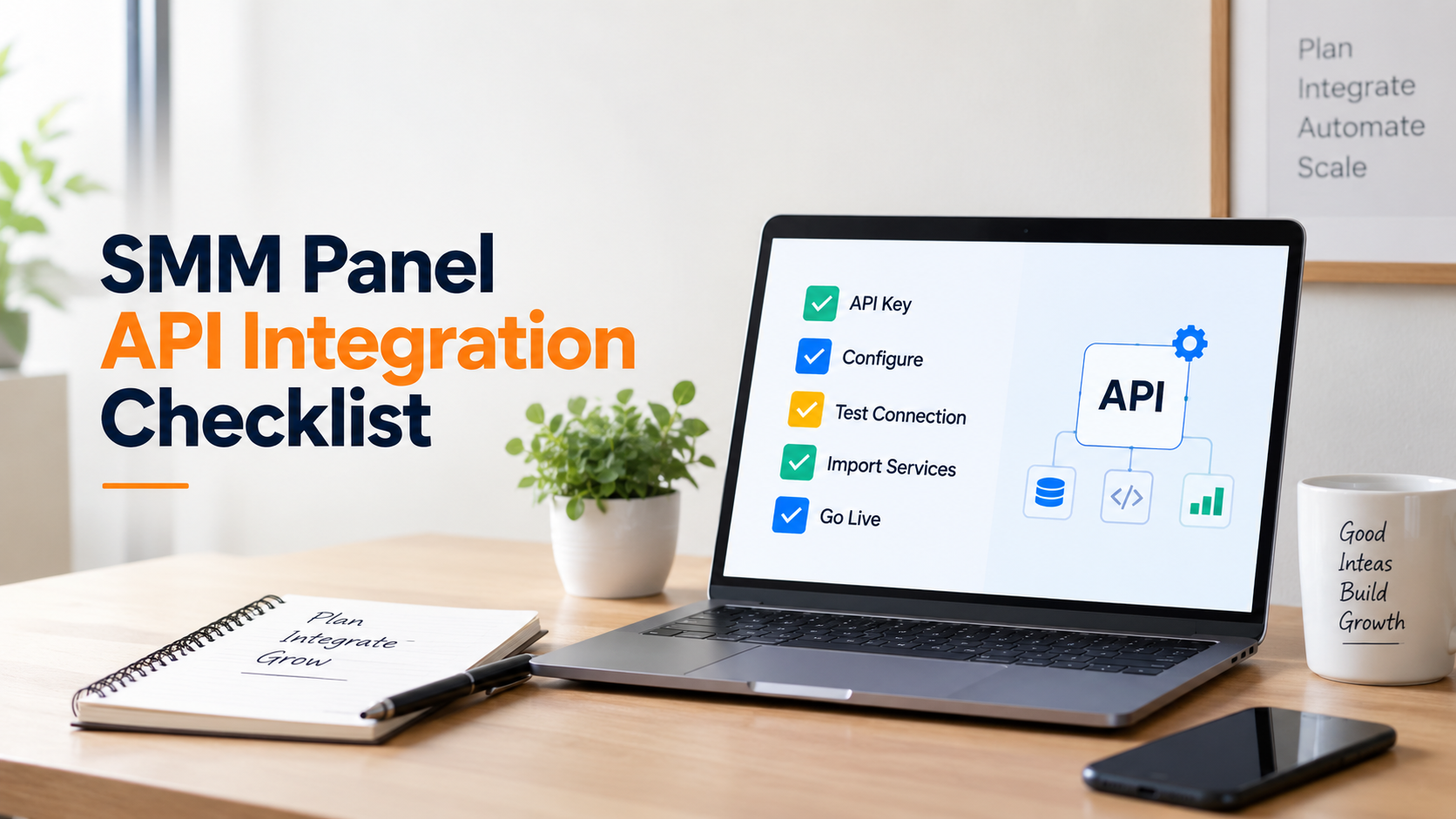
Before you enable live order processing, review your SMM panel API integration carefully. A short final check can help prevent failed orders, pricing mistakes, and connection issues.
Confirm that:
- Your API URL is correct.
- Your API key is active and secure.
- You have reviewed the latest API documentation.
- The service list loads correctly.
- Each service uses the right provider ID.
- Minimum and maximum order limits match.
- Your selling prices include your target margin.
- A test order completes successfully.
- Your system stores the provider order ID.
- Order status updates work properly.
- Your provider account has enough balance.
- Failed API requests are logged.
- Refill and cancellation options match provider support.
- Full automation starts only after testing.
Run this checklist again whenever you change providers, update service mappings, or make major changes to your SMM panel API setup. Regular checks help keep automated reseller orders accurate and reduce avoidable errors.
Final Words
Knowing how to integrate an SMM panel API helps you reduce manual work and manage reseller orders more efficiently. Start with the correct API credentials, follow the provider’s documentation, match service IDs carefully, and test a small order before enabling automation.
A reliable SMM panel API integration should make order processing easier without creating extra errors. Keep your API key secure, monitor order status and balance, and review service changes regularly. Once everything works correctly, SMM panel automation can help your reseller business handle more orders with less manual effort.
Frequently Asked Questions
Can I connect one SMM panel API to multiple websites?
Yes, technically many API systems can work with more than one website, but the provider must allow it. Each website should store the API key securely and send requests according to the provider's rules.
If you manage several reseller websites, keep accurate order records so you can identify which website created each provider order.
Can I switch to another API provider later?
Yes. You can change providers, but you will usually need to update the API endpoint, key, service mapping, prices, and request format.
Test the new connection before moving live orders. Service IDs from your old provider should not be assumed to match the new provider's IDs.
Why is my API order stuck in processing?
An order may remain in processing because delivery has started but has not finished, the service is experiencing a delay, or the provider is still working on the request.
Check the latest API status first. If the status does not change for an unusual amount of time, review the service details and contact the provider with the order ID.
Does an API automatically update service prices?
Not always. Some reseller systems can synchronize provider rates automatically, while others require manual price updates.
Even when automatic synchronization is available, review your pricing rules. A provider rate change can reduce your profit margin if your selling price changes incorrectly or stays unchanged.
What happens if a provider changes a service ID?
Your existing mapping can stop working if the provider removes a service or replaces its service ID. New orders may fail until you connect the service to the correct ID.
Check the provider's current service list regularly and update discontinued or changed services. This is especially important when you use automatic order processing.